DeepSource GitLab Integration: Step-by-Step Config Guide (2026)
Set up DeepSource with GitLab. Covers OAuth connection, .deepsource.toml, MR analysis, Autofix, coverage via GitLab CI, and troubleshooting.
Published:
What this guide covers
This guide walks through every step of integrating DeepSource with GitLab - from connecting your GitLab account via OAuth and activating projects to configuring .deepsource.toml, enabling merge request analysis with inline comments, setting up Autofix on GitLab MRs, uploading code coverage through GitLab CI, and troubleshooting the most common setup issues.
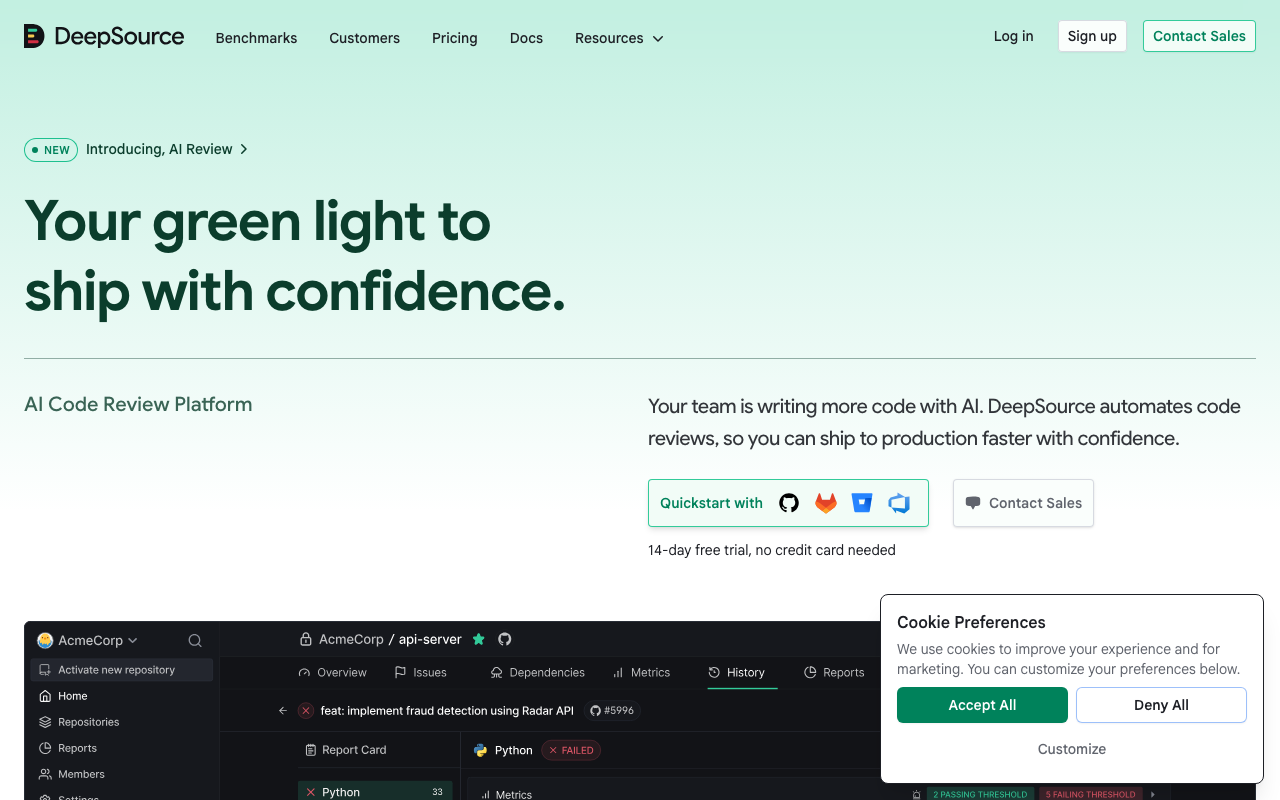
DeepSource is a static analysis platform with over 5,000 rules across 12+ languages, a sub-5% false positive rate, and Autofix AI that generates automated code fixes for detected issues. While many developers know DeepSource through its GitHub integration, the platform offers full-featured support for GitLab - including GitLab.com (SaaS) and GitLab self-managed instances. The deepsource gitlab integration delivers the same inline merge request comments, automated analysis, and one-click Autofix capabilities that make DeepSource a standout code quality tool.
If you are looking for the GitHub version of this setup, see our DeepSource GitHub integration guide. For a broader overview of the platform, start with our DeepSource review. And if you want to understand what each setting in the configuration file does before you begin, our DeepSource toml configuration reference covers every option in detail.
This guide assumes you have a GitLab account with at least Maintainer-level access to the projects you want to analyze. The deepsource gitlab setup process works on both free and paid GitLab tiers.
Prerequisites
Before starting the DeepSource GitLab configuration, make sure you have the following in place.
A GitLab account with Maintainer access. DeepSource needs to create webhooks on your projects, which requires at least the Maintainer role. If you only have Developer access, ask a project Maintainer or Owner to either perform the setup or grant you the necessary role temporarily.
A DeepSource account. If you do not have one yet, you will create it during the OAuth connection step below. DeepSource offers a free Open Source plan for public repositories and a 14-day free trial of the Team plan for private repositories. Check the DeepSource pricing breakdown to understand which plan fits your needs.
A repository with analyzable code. DeepSource needs at least one supported language in your project - Python, JavaScript, TypeScript, Go, Ruby, Java, Rust, C#, Kotlin, PHP, Scala, or Swift. Empty repositories or repositories containing only configuration files and documentation will not produce analysis results.
Network access from GitLab to DeepSource. If you are using GitLab self-managed behind a corporate firewall, ensure that outbound HTTPS traffic to deepsource.com is permitted. For fully air-gapped environments, you will need DeepSource Enterprise Server, which runs entirely within your infrastructure.
Step 1 - Connect GitLab to DeepSource via OAuth
The first step in the deepsource gitlab setup is establishing the OAuth connection between your GitLab account and DeepSource. This grants DeepSource the permissions it needs to read your code, receive webhook events, and post comments on merge requests.
Sign up or sign in with GitLab
Navigate to deepsource.com and click Sign Up or Log In. Select the GitLab option from the available authentication providers. DeepSource supports signing in with GitLab.com directly. If you already have a DeepSource account connected to GitHub, you can add GitLab as an additional provider from your account settings.
GitLab will present an authorization screen asking you to grant DeepSource the following OAuth scopes:
- api - allows DeepSource to access the GitLab API for reading repository contents, posting merge request comments, and managing webhooks
- read_user - allows DeepSource to read your GitLab user profile information
Click Authorize to proceed. DeepSource will redirect you back to its dashboard with your GitLab identity linked.
Connect your GitLab group
After authorization, DeepSource presents a list of GitLab groups and subgroups you have access to. Select the group that contains the projects you want to analyze. DeepSource scopes its access to the selected group, so it will only see projects within that group and its subgroups.
If you manage projects across multiple top-level groups, you can connect additional groups later from the DeepSource dashboard under Settings. Each group connection is independent and can be removed without affecting other connections.
Self-managed GitLab instances
For GitLab self-managed instances, the connection process requires an extra step. You need to create an OAuth application within your GitLab admin area first.
- Log in to your GitLab instance as an administrator
- Navigate to Admin Area, then Applications
- Click New Application
- Set the Name to “DeepSource”
- Set the Redirect URI to the callback URL provided in the DeepSource dashboard
- Select the scopes: api and read_user
- Click Save application
- Copy the Application ID and Secret
- In the DeepSource dashboard, go to Settings, then Git Providers, and click Add GitLab Self-Managed
- Enter your GitLab instance URL, the Application ID, and the Secret
DeepSource will verify the connection and, if successful, display your GitLab groups for project activation.
Step 2 - Activate projects for analysis
With the GitLab OAuth connection established, the next step is telling DeepSource which projects to analyze.
Select repositories in the DeepSource dashboard
- In the DeepSource dashboard, click the plus icon or Activate Repository
- You will see a list of all projects available within your connected GitLab groups
- Search for or browse to the project you want to activate
- Click Activate on the project
DeepSource will create a webhook on the GitLab project automatically. This webhook listens for push events and merge request events, triggering analysis whenever code changes are pushed or a merge request is opened or updated.
Verify webhook creation
After activation, verify that the webhook was created successfully:
- Go to your GitLab project
- Navigate to Settings, then Webhooks
- You should see a webhook pointing to a DeepSource URL
- The webhook should have Push events and Merge request events enabled
If the webhook is missing, the most common cause is insufficient permissions. The GitLab user who authorized DeepSource must have at least Maintainer role on the project. If you authorized with a user who only has Developer access, the webhook creation will fail silently. Either upgrade the user’s role or have a Maintainer re-authorize the connection.
Bulk activation
If you need to activate many projects at once, DeepSource allows you to select multiple projects during the activation step. However, each project still needs its own .deepsource.toml configuration file. Activating a project without a configuration file means DeepSource will detect the project but will not run analysis until the TOML file is committed.
Step 3 - Create the .deepsource.toml configuration file
The .deepsource.toml file is the heart of your deepsource gitlab configuration. It tells DeepSource which languages to analyze, which transformers to run, and which files to exclude. This file is identical across GitHub and GitLab - no platform-specific settings are needed.
For a comprehensive deep dive into every configuration option, see our DeepSource toml configuration guide.
Basic configuration for a Python project
Create a file named .deepsource.toml in your repository root:
version = 1

[[analyzers]]
name = "python"
enabled = true

  [analyzers.meta]
  runtime_version = "3.x"
  max_line_length = 100
This minimal configuration enables the Python analyzer with Python 3.x compatibility and a maximum line length of 100 characters. DeepSource will analyze all Python files in the repository using its full rule set for bug risk, anti-patterns, performance issues, security vulnerabilities, and style violations.
Multi-language configuration
For projects that use multiple languages, add additional [[analyzers]] sections:
version = 1

exclude_patterns = [
  "vendor/**",
  "node_modules/**",
  "**/generated/**",
  "**/*.min.js",
  "migrations/**"
]

test_patterns = [
  "tests/**",
  "**/test_*.py",
  "**/*_test.go",
  "**/*.test.js",
  "**/*.spec.ts"
]

[[analyzers]]
name = "python"
enabled = true

  [analyzers.meta]
  runtime_version = "3.x"

[[analyzers]]
name = "javascript"
enabled = true

[[analyzers]]
name = "go"
enabled = true

  [analyzers.meta]
  import_root = "gitlab.com/your-group/your-project"

[[transformers]]
name = "black"
enabled = true

[[transformers]]
name = "prettier"
enabled = true
This configuration analyzes Python, JavaScript, and Go code while excluding vendor directories, node_modules, generated files, minified JavaScript, and database migrations. Test files are identified separately so DeepSource applies appropriate rules to test code. The Black and Prettier transformers handle automatic code formatting for Python and JavaScript respectively.
Configuration for a Java or Kotlin project
version = 1

exclude_patterns = [
  "build/**",
  ".gradle/**",
  "**/generated/**"
]

test_patterns = [
  "src/test/**",
  "**/*Test.java",
  "**/*Test.kt"
]

[[analyzers]]
name = "java"
enabled = true

  [analyzers.meta]
  runtime_version = "17"

[[analyzers]]
name = "kotlin"
enabled = true
Commit and push the configuration
Once your .deepsource.toml is ready, commit it to the default branch of your repository:
git add .deepsource.toml
git commit -m "Add DeepSource configuration for static analysis"
git push origin main
DeepSource will detect the new configuration file through the webhook and trigger the first full analysis of your repository. This initial scan may take several minutes depending on the size of your codebase. Subsequent analyses on merge requests are faster because DeepSource only scans changed files.
Step 4 - Merge request analysis
One of the most valuable features of the deepsource gitlab integration is automated merge request analysis. Every time you open or update a merge request, DeepSource scans the changed files and posts inline comments directly on the MR.
How deepsource gitlab mr analysis works
When a merge request event is received via the webhook:
- DeepSource pulls the diff between the source and target branches
- It runs the configured analyzers on the changed files only
- New issues introduced in the MR are identified by comparing against the baseline analysis of the target branch
- Inline comments are posted on the specific lines where issues were detected
- A summary comment is added to the MR with an overview of findings
This diff-aware approach means DeepSource only flags issues that your merge request introduces - not pre-existing technical debt in the codebase. This keeps the signal-to-noise ratio high and avoids overwhelming developers with issues they did not create.
Understanding MR comments
Each inline comment from DeepSource includes several pieces of information:
- Issue category - one of Bug Risk, Anti-pattern, Performance, Security, or Style
- Issue description - a clear explanation of what the problem is and why it matters
- Severity level - Critical, Major, or Minor
- Autofix button - when available, a one-click button to generate an automated fix
- Rule reference - a link to the full documentation for the specific rule that triggered
Configuring MR behavior
In the DeepSource dashboard, navigate to your repository settings to configure how merge request analysis behaves:
- Status checks - DeepSource can report a pass or fail status check on the merge request based on whether new issues are introduced. You can configure this to block merging when critical or major issues are found.
- Comment threshold - set the minimum severity for inline comments. For example, you might choose to only post comments for Critical and Major issues while logging Minor issues to the dashboard only.
- Label integration - DeepSource can add labels to merge requests indicating the analysis status, such as “DeepSource: Issues Found” or “DeepSource: Clean.”
Using merge request status checks with GitLab
To enforce code quality standards through GitLab’s merge request approval rules:
- In DeepSource, enable the status check feature for your repository
- In your GitLab project, go to Settings, then Merge requests
- Under Merge checks, enable “Pipelines must succeed” or configure specific external status checks
- DeepSource’s status check will now block merging when new issues are detected
This creates a quality gate that prevents code with static analysis issues from reaching your default branch. Teams typically start with this check in a non-blocking advisory mode and switch to blocking after confirming that the false positive rate is acceptable for their codebase.
Step 5 - Autofix on GitLab merge requests
DeepSource Autofix is one of the platform’s standout features. Rather than just pointing out issues, Autofix generates actual code fixes and commits them directly to your branch - saving developers the time of manually remediating each finding.
How deepsource gitlab autofix works
When DeepSource finds a fixable issue in a merge request:
- It posts an inline comment on the MR with the issue description
- The comment includes an Autofix button
- Clicking the button triggers DeepSource to generate the fix
- DeepSource creates a new commit on the source branch with the corrected code
- The merge request is updated with the new commit, and the fix is visible in the diff
Autofix works for a wide range of issue categories - removing unused imports, fixing incorrect exception handling, replacing deprecated API calls, correcting security vulnerabilities, and resolving anti-patterns. Not every issue has an Autofix available, but the coverage is substantial across all supported languages.
Autofix availability by plan
On the Team plan at $24/user/month, Autofix usage is unlimited. You can click Autofix on every fixable finding without worrying about usage limits. On the Open Source plan, Autofix is available on a pay-as-you-go basis.
Bulk Autofix
For the initial analysis of an existing codebase, DeepSource offers a Bulk Autofix feature that can fix multiple issues across the repository in a single operation. This is particularly useful when first onboarding a project - rather than fixing hundreds of style violations one by one, you can apply all compatible fixes at once and review the resulting commit.
To use Bulk Autofix:
- Go to your repository in the DeepSource dashboard
- Navigate to the Issues tab
- Filter for fixable issues
- Click the Autofix All button to generate a commit or pull request with all available fixes
On GitLab, Bulk Autofix creates a new branch with the fixes applied and opens a merge request for you to review before merging.
Step 6 - Code coverage reporting via GitLab CI
DeepSource can track code coverage metrics alongside its static analysis findings. To feed coverage data to DeepSource from a GitLab project, you use GitLab CI to generate coverage reports and upload them via the DeepSource CLI or API.
Get your DeepSource DSN
Each repository in DeepSource has a unique Data Source Name (DSN) used for coverage uploads:
- Go to your repository in the DeepSource dashboard
- Navigate to Settings
- Find the DSN value - it looks like
https://[email protected] - Copy this value - you will add it as a GitLab CI/CD variable
Add the DSN to GitLab CI/CD variables
- In your GitLab project, go to Settings, then CI/CD
- Expand the Variables section
- Click Add Variable
- Set the Key to
DEEPSOURCE_DSN - Paste the DSN value
- Check “Mask variable” to prevent it from appearing in job logs
- Optionally check “Protect variable” if you only want it available on protected branches
- Click Add Variable
Configure the GitLab CI pipeline
Add a coverage reporting stage to your .gitlab-ci.yml. Here is an example for a Python project using pytest:
stages:
  - test
  - report

test:
  stage: test
  image: python:3.12
  script:
    - pip install -r requirements.txt
    - pip install pytest pytest-cov
    - pytest --cov=src --cov-report=xml:coverage.xml
  artifacts:
    paths:
      - coverage.xml
    expire_in: 1 hour

deepsource-coverage:
  stage: report
  image: deepsource/cli:latest
  dependencies:
    - test
  script:
    - export DEEPSOURCE_DSN=$DEEPSOURCE_DSN
    - deepsource report --analyzer python --key coverage --value-file coverage.xml
  only:
    - merge_requests
    - main
Coverage reporting for other languages
The pattern is the same regardless of language - generate a coverage report in a supported format and upload it with the DeepSource CLI.
Go:
test-go:
  stage: test
  image: golang:1.22
  script:
    - go test -coverprofile=coverage.out ./...
  artifacts:
    paths:
      - coverage.out

deepsource-coverage-go:
  stage: report
  image: deepsource/cli:latest
  dependencies:
    - test-go
  script:
    - deepsource report --analyzer go --key coverage --value-file coverage.out
JavaScript/TypeScript (with Jest):
test-js:
  stage: test
  image: node:20
  script:
    - npm ci
    - npx jest --coverage --coverageReporters=lcov
  artifacts:
    paths:
      - coverage/lcov.info

deepsource-coverage-js:
  stage: report
  image: deepsource/cli:latest
  dependencies:
    - test-js
  script:
    - deepsource report --analyzer javascript --key coverage --value-file coverage/lcov.info
Java (with JaCoCo):
test-java:
  stage: test
  image: gradle:8-jdk17
  script:
    - gradle test jacocoTestReport
  artifacts:
    paths:
      - build/reports/jacoco/test/jacocoTestReport.xml

deepsource-coverage-java:
  stage: report
  image: deepsource/cli:latest
  dependencies:
    - test-java
  script:
    - deepsource report --analyzer java --key coverage --value-file build/reports/jacoco/test/jacocoTestReport.xml
Viewing coverage data
Once coverage reports are uploaded successfully, coverage data appears in two places:
- DeepSource dashboard - the repository overview shows overall coverage percentage, coverage trends over time, and per-file coverage breakdowns
- Merge request comments - DeepSource includes coverage change information in its MR summary, showing whether the merge request increases or decreases overall coverage
Coverage data combined with static analysis findings gives you a comprehensive view of code quality on every merge request.
Step 7 - Advanced GitLab-specific configuration
Beyond the basic setup, there are several configurations specific to the deepsource gitlab integration that help you get the most out of the platform.
Monorepo support
If your GitLab project is a monorepo containing multiple services or packages, you still use a single .deepsource.toml file at the repository root. Configure multiple analyzers for the languages used across your services, and use exclude_patterns to scope analysis appropriately:
version = 1

exclude_patterns = [
  "infrastructure/**",
  "scripts/**",
  "**/fixtures/**"
]

test_patterns = [
  "**/tests/**",
  "**/*_test.py",
  "**/*.test.ts"
]

[[analyzers]]
name = "python"
enabled = true

  [analyzers.meta]
  runtime_version = "3.x"

[[analyzers]]
name = "javascript"
enabled = true

[[analyzers]]
name = "go"
enabled = true

  [analyzers.meta]
  import_root = "gitlab.com/your-group/monorepo"
GitLab subgroups
DeepSource handles GitLab subgroups transparently. When you connect a top-level group, all subgroups and their projects are available for activation. You do not need to connect each subgroup individually. Permissions are inherited from the GitLab group hierarchy, so if your GitLab user has Maintainer access at the group level, that access extends to all subgroup projects.
Protected branches and analysis
By default, DeepSource analyzes pushes to all branches. If you want to limit full baseline analysis to your default branch and only run diff-aware analysis on merge requests, no additional configuration is needed - this is the default behavior. DeepSource automatically determines whether to run a full or diff analysis based on the event type received from the webhook.
API and webhook integration
For teams that want to programmatically interact with DeepSource’s analysis results, the platform provides a GraphQL API. You can query analysis status, retrieve issue lists, track metrics over time, and trigger analyses programmatically. The API is authenticated using a personal access token generated from your DeepSource account settings.
Troubleshooting common issues
The deepsource gitlab integration is straightforward, but there are several common issues that teams encounter during and after setup.
DeepSource is not analyzing my GitLab project
Work through these checks in order:
-
Verify project activation. Open the DeepSource dashboard and confirm your project appears in the repository list with an active status. If it shows as inactive, click Activate.
-
Check the .deepsource.toml file. The file must exist at the root of the default branch (usually
mainormaster). Open the file and verify it uses valid TOML syntax with at least one analyzer that hasenabled = true. A common mistake is placing the file in a subdirectory or on a non-default branch. -
Validate TOML syntax. TOML syntax errors will prevent DeepSource from parsing the configuration. Common mistakes include missing quotes around string values, incorrect table header syntax, and mismatched brackets. Use an online TOML validator to check your file.
-
Check the webhook. Go to your GitLab project Settings, then Webhooks. Confirm a DeepSource webhook exists and has Push events and Merge request events enabled. Click Test and select Push events to verify the webhook delivers successfully.
-
Verify permissions. The GitLab user who authorized DeepSource needs at least Maintainer role on the project. Developer-level access is insufficient for webhook creation.
Merge request comments are not appearing
If DeepSource analyzes the code but does not post inline comments on merge requests:
- Check that the MR introduces new issues. DeepSource only comments on new issues, not pre-existing problems. If your MR does not introduce any issues, no comments will appear - this is expected behavior.
- Verify webhook configuration. The webhook must have Merge request events enabled, not just Push events.
- Check the DeepSource dashboard. Navigate to your repository in the DeepSource dashboard and view the analysis history. If analysis runs are showing but MR comments are not posted, there may be a permission issue preventing DeepSource from writing comments on the GitLab project.
- GitLab API rate limits. On GitLab.com with many active merge requests, API rate limits can occasionally delay comment posting. Comments typically appear within a few minutes of the analysis completing.
Webhook delivery failures
If webhook deliveries are failing:
- Go to your GitLab project Settings, then Webhooks
- Find the DeepSource webhook and check recent deliveries
- A 200 status code indicates successful delivery
- A 4xx or 5xx status code indicates a problem
Common causes of webhook failures:
- SSL certificate issues on self-managed GitLab instances - ensure your GitLab instance uses a valid SSL certificate that DeepSource’s servers can verify
- Network connectivity - your GitLab instance must be able to reach DeepSource’s servers over HTTPS
- Webhook URL changed - if DeepSource updated its webhook endpoint, you may need to deactivate and reactivate the repository to get the new URL
Coverage upload failures in GitLab CI
If coverage data is not appearing in DeepSource:
- Verify the DEEPSOURCE_DSN variable. Check that the CI/CD variable is set correctly and is not restricted to protected branches if you are running on a non-protected branch.
- Check the coverage format. DeepSource supports specific coverage formats - XML Cobertura, LCOV, and JaCoCo XML. Ensure your test framework is generating the correct format.
- Verify the analyzer name. The
--analyzerflag in thedeepsource reportcommand must match the analyzer name in your.deepsource.tomlfile. Usingpythonin the TOML butpyin the CLI command will cause the upload to fail. - Check CI job logs. The DeepSource CLI outputs error messages when uploads fail. Review the job log for specific error details.
- Artifact availability. Ensure the coverage report file is correctly passed between CI stages using GitLab’s
artifactsanddependenciesconfiguration. If the file does not exist when the upload job runs, the CLI will report an error.
Analysis is slow or timing out
If analysis takes too long:
- Add exclude patterns. Exclude vendor directories, generated code, build output, and large binary files from analysis. These files create unnecessary processing overhead.
- Reduce analyzer count. If you have many analyzers enabled but some languages only appear in a small portion of the codebase, consider whether all analyzers are necessary.
- Check repository size. Repositories with hundreds of thousands of lines of code may take longer on the initial full analysis. Subsequent MR analyses are significantly faster because they only process changed files.
Alternative - CodeAnt AI for GitLab
If you are evaluating options for GitLab code analysis, CodeAnt AI is worth considering as an alternative or complement to DeepSource. Priced at $24-40/user/month, CodeAnt AI provides AI-powered code review with broader context awareness than traditional static analysis tools.
Where DeepSource relies on deterministic rule-based analysis with over 5,000 predefined rules, CodeAnt AI uses machine learning to understand code semantics and provide natural language feedback. This means CodeAnt AI can catch logical errors, suggest architectural improvements, and identify issues that pattern-matching tools miss. However, DeepSource’s sub-5% false positive rate and Autofix capabilities give it an edge for teams that prioritize precision and automated remediation.
For teams already using DeepSource on GitLab, CodeAnt AI can serve as an additional layer - DeepSource handles the deterministic checks while CodeAnt AI provides higher-level review feedback. For teams choosing between the two, the decision often comes down to whether you value comprehensive rule coverage with auto-fixes (DeepSource) or contextual AI-driven review (CodeAnt AI). See our DeepSource alternatives comparison for a broader look at the competitive landscape.
Summary
Setting up the DeepSource GitLab integration involves five core steps: connecting your GitLab account via OAuth, activating your projects in the DeepSource dashboard, committing a .deepsource.toml configuration file to your repository root, verifying that merge request analysis produces inline comments, and optionally configuring code coverage uploads through GitLab CI.
The deepsource gitlab mr analysis feature is the primary value driver - every merge request gets scanned automatically, new issues are flagged with inline comments, and Autofix handles remediation for many common problems. Combined with coverage reporting, you get a complete picture of code quality on every MR without leaving GitLab.
For configuration file details beyond what this guide covers, see our DeepSource toml configuration reference. For pricing considerations, check the DeepSource pricing breakdown. And for a comparison with other code quality platforms, see our DeepSource alternatives overview.
Frequently Asked Questions
How do I integrate DeepSource with GitLab?
Sign in at deepsource.com using your GitLab account via OAuth. Authorize DeepSource to access your GitLab groups and projects. In the DeepSource dashboard, click Activate Repository and select the GitLab projects you want to analyze. Then commit a .deepsource.toml configuration file to the root of each project specifying which analyzers and transformers to use. DeepSource will automatically start analyzing your code on every push and merge request. The entire process takes under 15 minutes.
Does DeepSource support GitLab self-managed instances?
Yes. DeepSource supports both GitLab.com (SaaS) and GitLab self-managed instances. For self-managed GitLab, you need to configure an OAuth application within your GitLab instance's admin area and provide the application ID and secret to DeepSource during setup. This requires your GitLab instance to be accessible from the internet or you must use DeepSource Enterprise Server for on-premise deployments behind a firewall.
Is DeepSource free for GitLab repositories?
DeepSource offers a free Open Source plan for public GitLab repositories. This includes unlimited team members, unlimited public repos, 1,000 merge request reviews per month, and 1,000 automated code formatting runs per month. For private GitLab repositories, you need the Team plan at $24/user/month with annual billing. DeepSource also provides a 14-day free trial of the Team plan with no credit card required.
How does DeepSource analyze GitLab merge requests?
When you open or update a merge request in GitLab, DeepSource receives a webhook notification and runs a diff-aware analysis on the changed files. It posts inline comments directly on the merge request highlighting issues found in the new or modified code. Each comment includes the issue category, description, severity, and an Autofix button when an automated fix is available. DeepSource only flags new issues introduced by the MR, not pre-existing problems in the codebase.
How do I configure the .deepsource.toml file for GitLab?
The .deepsource.toml file is identical whether you use GitHub or GitLab. Place it in your repository root and define at least one analyzer with its name and enabled = true. For example, for a Python project, add an [[analyzers]] section with name = 'python' and enabled = true, plus an optional [analyzers.meta] section to set the runtime_version. You can add multiple analyzers for polyglot projects. See our complete .deepsource.toml reference guide for detailed examples.
Does DeepSource Autofix work on GitLab merge requests?
Yes. When DeepSource detects a fixable issue in a GitLab merge request, it adds an Autofix button to the inline comment. Clicking the button causes DeepSource to create a new commit on the source branch with the fix applied. This works the same way as on GitHub. Autofix is available for most common issues across all supported languages, and usage is unlimited on the Team plan.
How do I set up code coverage reporting with DeepSource and GitLab CI?
Add a step to your .gitlab-ci.yml pipeline that generates a coverage report in a supported format (XML Cobertura, LCOV, or JaCoCo) and uploads it to DeepSource using the DeepSource CLI or the coverage report API. You need to set the DEEPSOURCE_DSN environment variable in your GitLab CI/CD settings, which you can find on your repository's settings page in the DeepSource dashboard. Once configured, coverage data appears on merge requests and in the DeepSource dashboard.
Why is DeepSource not analyzing my GitLab project?
Check these causes in order. First, verify that you authorized DeepSource to access the GitLab group containing your project. Second, confirm the project is activated in the DeepSource dashboard. Third, check that a valid .deepsource.toml file exists at the repository root on the default branch. Fourth, ensure the TOML syntax is valid and at least one analyzer is enabled with a supported name. Fifth, verify the webhook is configured correctly in your GitLab project settings under Webhooks. Sixth, check that your GitLab user has at least Maintainer role on the project.
How do I fix DeepSource webhook issues on GitLab?
Go to your GitLab project Settings, then Webhooks. Find the DeepSource webhook URL and click Test, then select Push events. If the test fails, check that the webhook URL is correct and that your GitLab instance can reach DeepSource's servers. For self-managed GitLab, ensure outbound network access is allowed to deepsource.com. If the webhook was deleted, you can re-add it from the DeepSource dashboard by deactivating and reactivating the repository.
Can I use DeepSource with GitLab CI/CD pipelines?
DeepSource does not require GitLab CI for its core analysis - the integration works through webhooks triggered by push and merge request events. However, GitLab CI is needed for uploading code coverage data to DeepSource. You can also use the DeepSource CLI in a GitLab CI job for custom analysis scenarios such as running analysis on specific branches or integrating DeepSource results into a broader pipeline. The CLI is available as a Docker image.
What permissions does DeepSource need on GitLab?
DeepSource requires read access to your repository code to perform analysis and write access to post inline comments on merge requests. When you authorize via OAuth, DeepSource requests the api and read_user scopes. The user authorizing the connection needs at least Maintainer role on the projects being activated. DeepSource creates a webhook on each activated project to receive push and merge request events.
How does DeepSource compare to CodeAnt AI for GitLab integration?
DeepSource focuses on deterministic static analysis with 5,000+ rules and a sub-5% false positive rate, plus automated code fixes via Autofix. CodeAnt AI at $24-40/user/month provides AI-powered code review with broader context awareness and natural language feedback on merge requests. DeepSource excels at catching known code patterns and enforcing standards. CodeAnt AI is better at identifying logical errors and providing contextual suggestions beyond pattern matching. Both support GitLab integration with inline MR comments.
Explore More
Tool Reviews
 DeepSource Review
 CodeAnt AI Review
Related Articles
- DeepSource GitHub Integration: Setup and Configuration Guide
- Configuring .deepsource.toml: Complete Reference Guide (2026)
- Best AI Code Review Tools for Pull Requests in 2026
- I Reviewed 32 SAST Tools - Here Are the Ones Actually Worth Using (2026)
- DeepSource Autofix: How Automatic Code Fixes Work in 2026
Free Newsletter
Stay ahead with AI dev tools
Weekly insights on AI code review, static analysis, and developer productivity. No spam, unsubscribe anytime.
Join developers getting weekly AI tool insights.
Related Articles
Codacy GitHub Integration: Complete Setup and Configuration Guide
Learn how to integrate Codacy with GitHub step by step. Covers GitHub App install, PR analysis, quality gates, coverage reports, and config.
March 13, 2026
how-toCodacy GitLab Integration: Setup and Configuration Guide (2026)
Set up Codacy with GitLab step by step. Covers OAuth, project import, MR analysis, quality gates, coverage reporting, and GitLab CI config.
March 13, 2026
how-toHow to Set Up Codacy with Jenkins for Automated Review
Set up Codacy with Jenkins for automated code review. Covers plugin setup, Jenkinsfile config, quality gates, coverage, and multibranch pipelines.
March 13, 2026